AI agents & robot employees
Robot employees that work for your team — under your rules.
Inovent Workforce OS gives you AI robot employees in teams, a Master Orchestrator that hands out the work, autonomy levels from L1 to L5 and a human approval step for everything that matters.
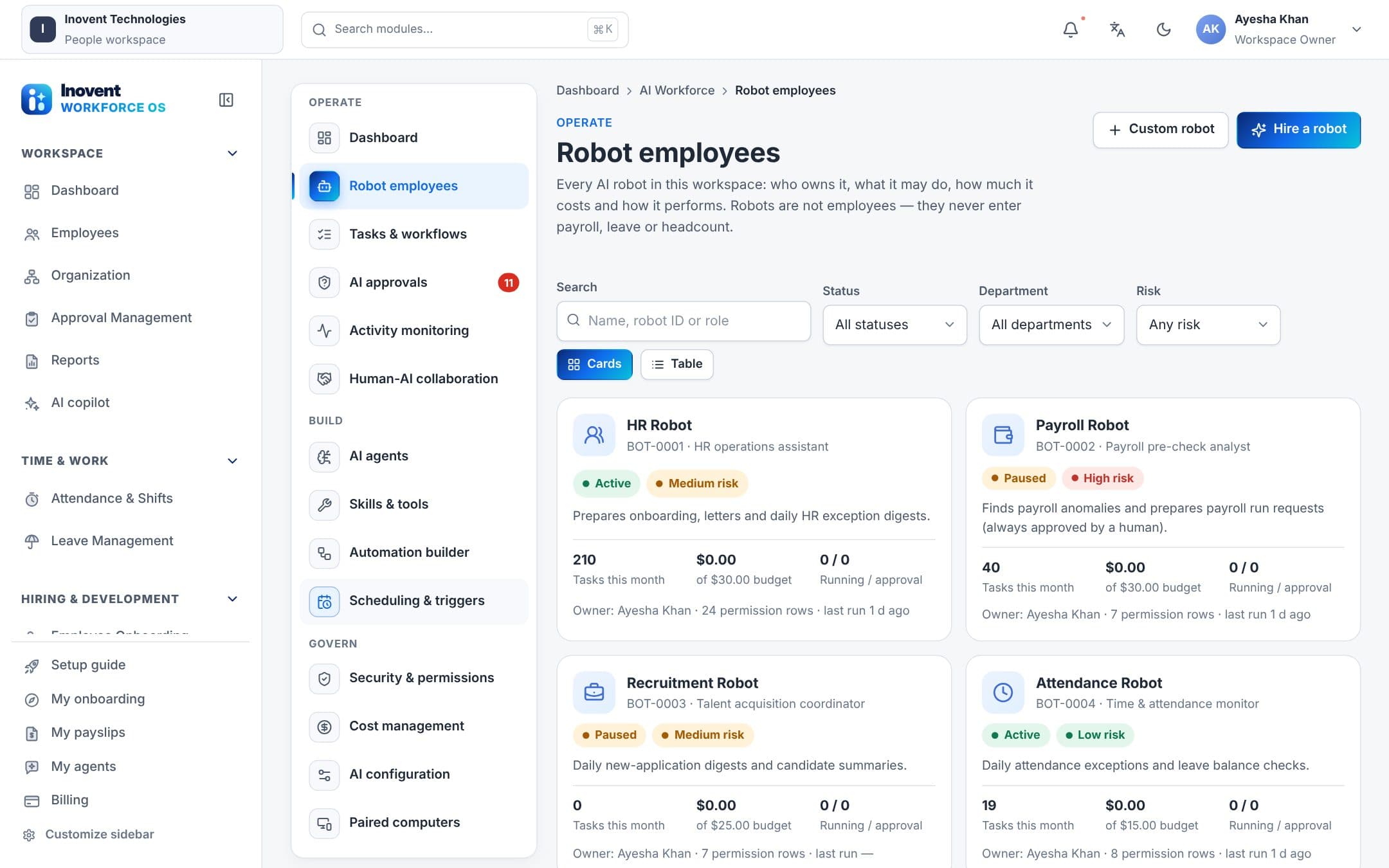
Robot employees
A robot is a teammate with an ID, an owner and limits.
Every robot is created on purpose, owned by a person and given only the access its job needs.
- Robot ID (BOT-0001…), name, team, role and specialisation
- A human owner who answers for it
- Deny-by-default permissions with data scope and masked fields
- An autonomy level, a risk level and a monthly budget
- A schedule and time zone, with operating hours
- Full history: tasks, steps, tool calls, approvals and cost
For every employee
A personal AI agent for everyone — acting as them, never beyond them.
Robots work for teams. Every employee can also create personal agents that work with their own identity and permissions, within limits the workspace sets.
Everyday HR, by asking
Check attendance and leave balances, apply for leave, claim expenses, request travel or a letter, raise a helpdesk ticket, browse courses and set reminders.
Asks before it acts
Reading runs straight away. Changes become an action you confirm; check-ins, approvals and messages always ask. Managers can see their team's attendance and leave.
Voice, schedules and robots
Talk to your agent with realtime voice where a realtime model is set up (or push-to-talk), schedule recurring checks, and hand tasks to robots.
Administrators decide whether personal agents are on, which tools they may use, how many each person may create and the monthly AI budget per employee.
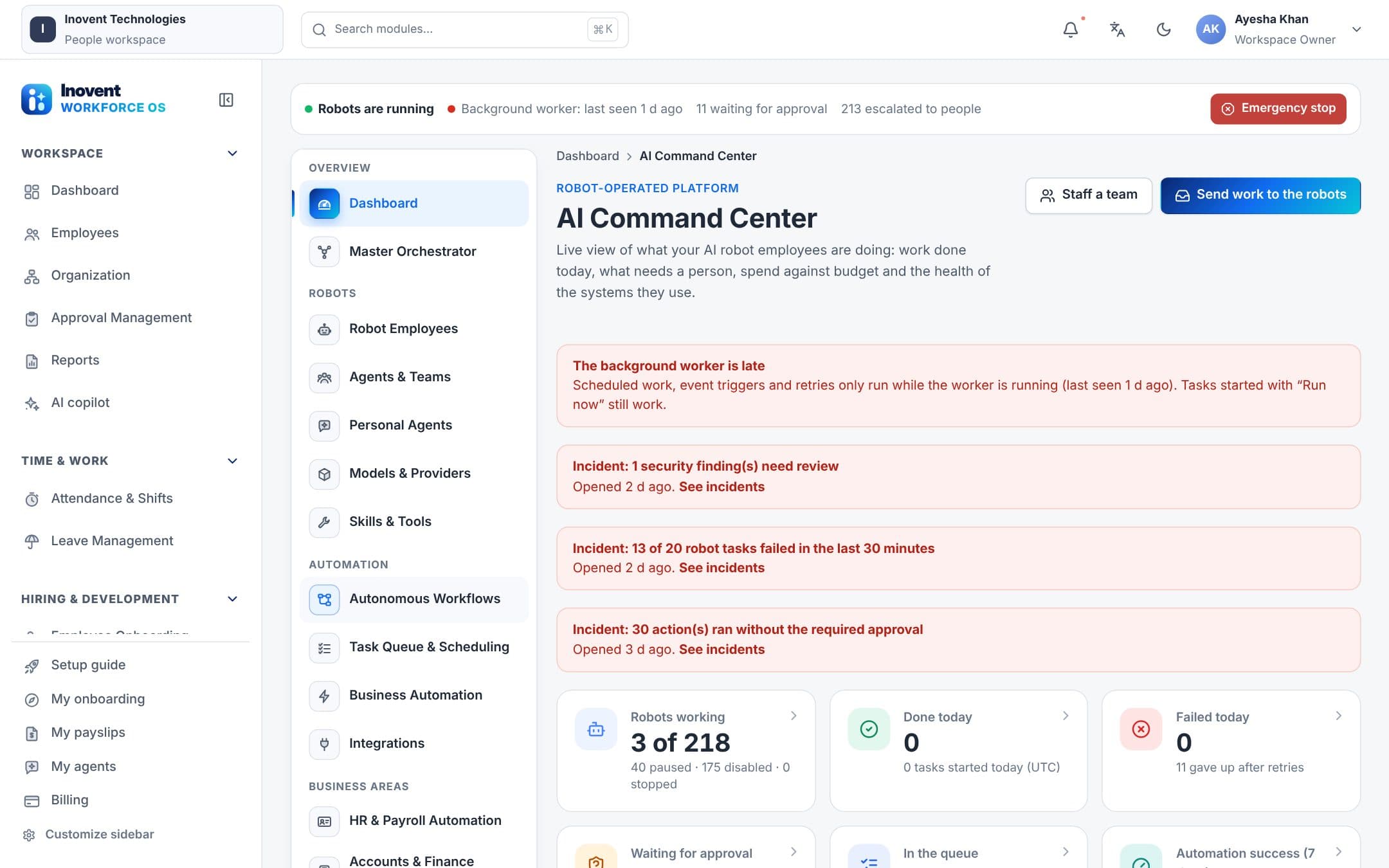
AI Command Center
One place to run, watch and govern every robot.
These are the Command Center's areas in every workspace.
- DashboardLive view of robots, tasks, costs, approvals and integrations.
- Master OrchestratorRouting rules, intake log, hand-offs, escalations and the work queue.
- Robot EmployeesEvery AI robot employee, its status, owner and access.
- Agents & TeamsThe robot teams and the AI agents (skills) robots use.
- Personal AgentsEmployees' own AI agents: how many there are, what they cost this month and the workspace limits.
- Models & ProvidersAI providers, models, routing and fallback used by robots.
- Skills & ToolsEvery tool robots can use, its risk and approval policy.
- Autonomous WorkflowsMulti-step automations robots run.
- Task Queue & SchedulingQueue, schedules, dead-letter list, worker health and incidents.
- Business AutomationWhich business events and schedules start robot work.
- IntegrationsConnections to Google, CRM, marketing and other services robots use.
- HR & Payroll AutomationOnboarding, attendance, leave, payroll checks, recruitment and learning robots.
- Accounts & Finance AutomationThe workspace's own bookkeeping: expense reconciliation, anomalies, payroll accounting checks and billing follow-ups.
- System MonitoringSystem health, uptime, incident response and developer robots.
- Memory & KnowledgeKnowledge bases robots may cite, with access controls.
- Human Approval CenterRobot actions waiting for a person's decision.
- Audit Logs & SecurityRobot permissions, kill switches and the audit trail.
- AI ConfigurationAutonomy levels, budgets, kill switch and workforce settings.
- Costs & BudgetsAI spend by robot, team and model against budgets.
- Robot Performance ReportsSuccess rate, time saved, quality and exports.
Master Orchestrator
The manager that hands out the work.
The orchestrator understands what came in, picks the right team, passes work between robots with a clear contract and checks the result.
- Classifies requests and routes them to the right robot team
- Structured hand-offs with task IDs and input/output contracts
- Validates output before it moves on
- Retries safe steps once, then escalates to a person
- Legal, abuse and security matters always go to a person
- A daily operations summary of what happened
Autonomy levels
You decide how much each robot does on its own.
Set a level for the workspace, a module, a team, a robot or a single task — the most specific one wins, and risky tools can cap it lower. Autonomy never adds permissions.
- L1AdvisoryAnalyses and recommends. Never changes anything.
- L2Draft & preparePrepares drafts and proposals for a person to act on. Nothing is executed.
- L3SupervisedDoes the work after a person approves each change.
- L4Autonomous routineDoes low-risk routine work on its own; risky actions and hand-offs to other robots still need approval.
- L5Coordinated autonomousWorks end to end with other robots under the same permissions, approvals and budgets.
Human approval
Some decisions always belong to people.
These actions wait for a person at every autonomy level — even L5. Robots can never approve, reject or escalate approval requests themselves.
- Releasing payroll or preparing a payroll run
- Changing salary or other compensation
- Ending employment (termination, resignation, retirement)
- Changing more than one employee at once
- Deleting anything that cannot be undone
- Sending external email (unless you explicitly allow auto-send)
Desktop agent
Robots that can work on a real computer — when you let them.
Pair a Windows computer running the desktop app and robots can list and read files in folders its user approved, save reports there, print PDFs and open links. Running commands is a separate choice made at the computer.
- Mode 1
Off
The default. Robots cannot run commands on this computer.
- Mode 2
Ask before every command
A dialog shows the exact command, folder, robot and task. No answer in two minutes means it doesn't run.
- Mode 3
Approved commands run automatically
Only commands on the list the person at the computer keeps; anything else still asks.
- Mode 4
Full access
Must be turned on by typing a confirmation phrase, and is shown in the tray and every window title.
- A blocked-commands list always asks first
- Nothing runs while the screen is locked
- Emergency stop in the tray
- Every command logged on the computer and audited in the workspace
Mobile agents
Robots in your pocket.
The mobile app for Android and iOS lets people work with robots wherever they are.
- See your robots and what they are working on
- Send a robot a task and follow it to the result
- Approve or reject requests waiting for you
- Ask the copilot about your own data
Bring your own model
Use the AI models you trust.
Robots, the copilot and AI agents go through one AI gateway with routing per task, ordered fallback, budgets and usage tracking. Where your package allows it, add your own provider key — it is encrypted and never shown again.
- OpenAI
- Anthropic
- Google Gemini
- xAI
- Mistral
- DeepSeek
- Cohere
- OpenRouter
- Groq
- Together AI
- Fireworks AI
- Azure OpenAI
- AWS Bedrock
- Google Vertex AI
- Ollama
- vLLM
- Any OpenAI-compatible API
Your own endpoints must be public HTTPS addresses; keys are sealed with AES-256-GCM.
Questions
AI agents, answered.
Are robots counted as employees?
No. Robots live in their own records. They never appear in payroll runs, leave, attendance, statutory reports or headcount, and their AI costs are tracked separately.
Can a robot give itself more access?
No. Robots start with no permissions. Only a person with the right to manage robots can grant access, and only to modules and fields that person holds rights to.
What stops a robot from overspending?
Each robot has a monthly budget and hourly limits, the workspace has its own budget, and the emergency stop halts every robot at once.
Do robots read instructions hidden in emails or web pages?
Emails, messages, documents and web pages are treated as data, never as instructions. Requests are passed to robots as content, and sensitive intents always go to a person.
Meet your first robot team in Workforce OS.
We'll staff a team with you, set its permissions and autonomy, and show you the approval flow end to end.